“In times of radical change, the learners inherit the earth, while the learned find themselves perfectly equipped for a world that no longer exists.” - Erik Hoffer

January 17, 2012

Jobs are hard enough to find. Employers use Facebook to weed out applicants...

Is Facebook becoming a "honey pot" for employers and personnel officers who want to keep from hiring people who might cause them problems after they're hired? Steve Johnson of The Mercury News thinks so in a January 16th article, "Those Facebook posts could cost you your job." What's worse, Facebook users don't have to cut their own throat, although many Facebook users do. There's always plenty of others - often your own friends - using their Facebook account to post that picture of you that you might not post yourself. What caught my eye in Johnson's report:
In a twist on the exploding use of online social media, employers in the Bay Area and nationwide are poring over the websites to weed out job applicants whose posts reveal that they use foul language, take drugs, associate with gangs or have other questionable characteristics. Some employers are even demanding that job candidates disclose their social network user names and passwords.  [Emphasis added.]
While Johnson says the legal and ethical implications have yet to be determined in court, would you want to be an employer trying to defend your company from a drunk driving lawsuit after the plaintiff's lawyer discovers several pictures on Facebook of your new delivery truck driver behind the wheel of his own car with a beer in his (or her) hand? Would you want to hire someone who trash-mouthed their former employer on Facebook? You can read the article for more examples at: http://www.siliconvalley.com/news/ci_19754451.

In the last month, when we're starting to see reports again of newspaper reporter's articles and blogger's posts being scanned and recorded by Homeland Security, is there any doubt that Facebook, Google+ and other social media sites have become the starting point for private firms, public organizations or even an inquisitive neighbor building a dossier on almost any employee, political opponent or anyone else for that matter?

Sure, go ahead and change your Facebook privacy settings.  [Feel better now.] That may work until the next time Facebook changes their mind about what portion of your personal content will be released to the next company willing to pay a good price for your information.

I'll admit it. I don't like Facebook nor am I fond of any of the social media engines that entice people to freely exchange their personal privacy for convenience or "being cool." But then I'm just an old codger who "doesn't get it." Yep, and I don't want it either!

December 19, 2011

LIfehacker: The best and best avoided software for Windows...

Over the weekend, I was talking with a friend about Download.com, add-on toolbars and malware in general. when it dawned on me that it would be a lot easier for new users and or even users upgrading their computers or just adding new software if they all knew what software to avoid first -- BEFORE they downloaded software that they'll regret and have to clean off their computer later.  To complicate matters, many new computers are sold with trial versions of antivirus or other software or even less capable versions of software in hopes that users will pay for expensive upgrade packages later.

Before you act like Admiral Farragut at Mobile Bay and go all "...full speed ahead," the smart move is to ask your technically inclined family members or friends first. But who do you ask when the children and grandchildren have finally gone home and it's time to figure out what software you want to add - or add back onto your new computer?

Windows Software Best Avoided
http://lifehacker.com/384545/superior-alternatives-to-crappy-windows-software (Published: 8/30/11)
It just so happens that Lifehacker.com has already asked and answered that question with a 17 item list of Windows software to avoid if possible. Those of us born when secretaries made multiple copies with a typewriter and carbon paper instead of a Xerox machine may prefer a more gentile title, but the title of LIfehacker's answer is both accurate and justified.

Some of the software listed is hard to avoid. You may already have a large folder of QuickTime movies of the kids (or grandkids), or your business uses Microsoft Office and you're trapped into using MS Outlook by shared calendars. I understand all of that. But like it or not, the software listed in the Lifehacker article has a substantial number of people who would rather use something else if they could. Most of the time there are alternatives. The article suggests other possible choices to the commonly avoided programs IF you're not already entangled and wish to try some something that might even be better.

Once you have some insight about what to avoid, Lifehacker then has two more articles to help new or replacement computer owners download what the authors and many others consider better or even the best software alternatives for Windows computers.


Best Windows Software
Right away, in the second paragraph, readers have the option of downloading and installing the entire list of best Windows software in one click from Ninite.com. Ninite is considered one of the more ethical sites by some security-minded developers, but I'd still recommend you look at each piece of software listed and pick those you wish to try first. At the same time, I'd also recommend that you bookmark all three of the best and best avoided Windows software articles so that you can come back and download other applications if you later discover you need them.

Even a casual reader will quickly discover that a few software applications are listed in the software to avoid AND the best Windows downloads. Adobe Flash, Adobe Reader and Skype are on both lists. First of all, some basic software is hard (or irritating) to avoid. At least, the best windows downloads list links you directly to the developer's website and not to a 3rd party site that's larding up the download with toolbars you didn't ask for when you started and may even be difficult to remove. (See the Dec. 6 blog post "CNET's Download.com may download more than expected...")

Most Popular Windows Software
http://lifehacker.com/5867878/most-popular-windows-downloads-and-posts-of-2011 (Published: 12/13/11)
As the title says, this is a collection of the most popular software downloads and short articles or "how-to's" to help new or returning users avoid annoyances, learn new tricks or accomplish tasks that have been difficult using other software solutions. For example, the list includes two hints for Firefox version 4. I'm already using Firefox 8 and will update to version 9 soon, but annoyances can carry forward and several are easily corrected. For example, my Firefox 8 looks very similar to my old Firefox 3. I like my tabs just above the page I'm viewing. The point is that you can sometimes customize software to work the way you want it to work.

And finally, don't forget the Windows Security Baseline so that your new or existing computer stays as secure as possible in the shark and minefield infested waters of the Internet. (See: the Dec. 1 blog post "Getting a new Computer for Christmas?") And don't forget to use the automated software update programs to help keep your protected computer that way.

If you're wondering about all the nautical references to admirals, sharks and minefields, in my youth, I always felt more secure without the additional complication of staying afloat and I joined the infantry. I hope you and your computer stay safe and secure without any added complications during the New Year and that you enjoy your holidays...

December 6, 2011

CNET's Download.com downloads more than expected...

Brian Krebs, who writes the Krebs on Security website, points out Dec. 6th, that CBS/CNET's Download.com site now uses a downloader program that frequently includes the preselected option to install unnecessary "toolbars" or other "invasive or annoying" programs that many long time computer users frankly call "crapware." You can read the full article at: http://krebsonsecurity.com/2011/12/download-com-bundling-toolbars-trojans/

I've also recommended Download.com as a convenient and safe source for home users and seniors to download software. However, Krebs' testing found that some of the extra programs were tagged as malware by more than one antivirus program. At least one of the extras was difficult to remove. Krebs even included an explanation from CNET as to why extra programs are bundled with the program you actually requested.

New Christmas computers are a prime target for multiple downloads of games, and utilities after Christmas. But this Christmas, remember Krebs reexamination of one of the most popular download sites and carefully consider his advice:
"...In the meantime, it’s always a good idea to download software directly from the source whenever possible, and to pay close attention to the prompts during the installation process."
Very good advice indeed. And as an old-timer myself, I've been burned often enough that I now carefully look for the extra little check marks in fine print during installation process of any downloaded software. Just be cautious and do try to go to the original source of the software if you can.

UPDATE: 12/09/11- Insecure.org also has a news page with more information on the additional software and changes added by CNET's Download.com. You can find the executive summary, and a list of related web posts concerning the topic at: http://insecure.org/news/download-com-fiasco.html

Gordon Lyon, developer of NMap and other security projects, also suggests downloading software applications from their official sites or more ethical aggregators such as FileHippo, Ninite or Softpedia.

December 1, 2011

Getting a new computer for Christmas?

It's December 1st and that time of the year when it's appropriate for an update on the security hardware and software I use with Windows computers here in the workshop every day. If you're planning to purchase a brand new Windows computer, first consider establishing the computer's security baseline before you start loading a lot of applications and surfing all over the web.


Windows Secrets - "Everything Microsoft Forgot to Mention"
Brian Livingston, the founding editor of Windows Secrets, retired this past year, but he's left the website in very capable hands. The website formerly shared a simple "Security Baseline" on the free portion of the website but unfortunately, some of the latest information on the basics of home or small office security, formerly free content, now requires a paid subscription. A quick checklist of the minimum common sense security configuration for a PC from the earlier free baseline articles includes: a hardware firewall, security software, a plan to manage updates and a secure browser. 


Hardware Firewall
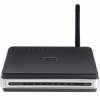
First be sure that the built-in Firewall in Windows 7 turned on. It should be, but check it to make sure. If you have a direct connection to the Internet, a cable broadband or DSL connection, a separate home or small business router or combination router/wireless access point normally includes a built-in hardware firewall and an extra measure of security between the modem and my networked computers. Setting up a router or router/wireless access point, be sure to follow the setup directions for your particular router, change the network name and passwords from the defaults and use the strongest wireless security settings your router/access point and other wireless equipment supports. Also take notes about the settings you keep and the changes you make either in the paper version of the manual or like me, keep a notebook that contains all your network manuals or setup guides and keep a record of your changes and updates there. Believe me, there will be a day when those notes, network sketches and settings will be helpful.


Security Software
Many new computers come with short-term trials of security software. Several free security packages are also available. Don't wait until you grow tired of the nagging to purchase their paid products. Set aside a time to remove the trial security package, and immediately download and install Microsoft Security Essentials (MSE). When I last checked the security software suggested on the Security Baseline page, Microsoft Security Essentials was recommended by Windows Secrets' editors Susan Bradley and Fred Langa for anyone looking for anti-virus and anti-malware protection. Langa reported his experience using MSE and Windows built-in firewall for six months on nine different desktop and laptop computers with a mix of Win7, Vista and XP. "All the machines have remained clean," Langa wrote. "They've suffered no malware or virus infections whatsoever."


I also run at least a monthly scan alternating between free versions of MalwareBytes and SUPERAntiSpyware. Usually all I'll catch on these extra scans are cookies that share enough information with other 3rd party sites to be considered "spyware." But I like to take that extra step in the interest of privacy and security and I appreciate having both free products immediately available if I were to suspect a more serious problem.


Manage Software Updates
Microsoft maintains a free update program for MS software, usually once a month on the second Tuesday of the month, but occasionally security updates are sent out before the monthly updates. Check the settings in your control panel to make sure you are notified about the updates and then update the software as soon as practical. Most home users can just choose to allow the update process to download and install the updates in background.


You also need a plan to manage all your other non-Microsoft updates and keep your browser and email packages secure. I use Personal Software Inspector (PSI) from Secunia. Start with the link, look at the screen shots and then read through the tabs until you get to the download page. Be sure to read the system requirements and other hints. For additional help before or after the installation process, Secunia provides an extensive FAQ page. Look over the topics, scan down the page to see how detailed the answers are and then use the FAQ if you need help. One final suggestion. Although PSI offers an automatic update setting, and I use it, be sure to check the icon that PSI installs with the other notifications at the bottom right of the screen after every startup. The icon should be green. If yellow or red, click on the icon to open PSI and see what action you may need to take to update your installed software. 

Use a Secure Browser

If you're using Windows and not yet using Internet Explorer 9, you should be. However, many knowledgeable computer users prefer Mozilla Firefox or Google Chrome. Both third-party browsers have unique features that may cause some users to prefer one or the other. Actually on my own machines, I keep up-to-date copies of MSIE, Firefox and Chrome so I can check and occasionally troubleshoot web pages with all three browsers. Use the automatic updates provided with Chrome and Firefox to help keep your browser as secure as possible.


Final Good Idea: While you're checking out the security essentials and other articles, be sure to sign up for their FREE version of the Windows Secrets email newsletter with the latest tech info and helpful tips on Windows. After receiving a few of the free versions, you may find the small donation for the complete version is easy to justify. Although retired and no longer directly involved in IT, I still read every issue.


Back to Top