“In times of radical change, the learners inherit the earth, while the learned find themselves perfectly equipped for a world that no longer exists.” - Erik Hoffer

December 1, 2011

Getting a new computer for Christmas?

It's December 1st and that time of the year when it's appropriate for an update on the security hardware and software I use with Windows computers here in the workshop every day. If you're planning to purchase a brand new Windows computer, first consider establishing the computer's security baseline before you start loading a lot of applications and surfing all over the web.


Windows Secrets - "Everything Microsoft Forgot to Mention"
Brian Livingston, the founding editor of Windows Secrets, retired this past year, but he's left the website in very capable hands. The website formerly shared a simple "Security Baseline" on the free portion of the website but unfortunately, some of the latest information on the basics of home or small office security, formerly free content, now requires a paid subscription. A quick checklist of the minimum common sense security configuration for a PC from the earlier free baseline articles includes: a hardware firewall, security software, a plan to manage updates and a secure browser. 


Hardware Firewall
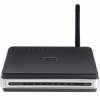
First be sure that the built-in Firewall in Windows 7 turned on. It should be, but check it to make sure. If you have a direct connection to the Internet, a cable broadband or DSL connection, a separate home or small business router or combination router/wireless access point normally includes a built-in hardware firewall and an extra measure of security between the modem and my networked computers. Setting up a router or router/wireless access point, be sure to follow the setup directions for your particular router, change the network name and passwords from the defaults and use the strongest wireless security settings your router/access point and other wireless equipment supports. Also take notes about the settings you keep and the changes you make either in the paper version of the manual or like me, keep a notebook that contains all your network manuals or setup guides and keep a record of your changes and updates there. Believe me, there will be a day when those notes, network sketches and settings will be helpful.


Security Software
Many new computers come with short-term trials of security software. Several free security packages are also available. Don't wait until you grow tired of the nagging to purchase their paid products. Set aside a time to remove the trial security package, and immediately download and install Microsoft Security Essentials (MSE). When I last checked the security software suggested on the Security Baseline page, Microsoft Security Essentials was recommended by Windows Secrets' editors Susan Bradley and Fred Langa for anyone looking for anti-virus and anti-malware protection. Langa reported his experience using MSE and Windows built-in firewall for six months on nine different desktop and laptop computers with a mix of Win7, Vista and XP. "All the machines have remained clean," Langa wrote. "They've suffered no malware or virus infections whatsoever."


I also run at least a monthly scan alternating between free versions of MalwareBytes and SUPERAntiSpyware. Usually all I'll catch on these extra scans are cookies that share enough information with other 3rd party sites to be considered "spyware." But I like to take that extra step in the interest of privacy and security and I appreciate having both free products immediately available if I were to suspect a more serious problem.


Manage Software Updates
Microsoft maintains a free update program for MS software, usually once a month on the second Tuesday of the month, but occasionally security updates are sent out before the monthly updates. Check the settings in your control panel to make sure you are notified about the updates and then update the software as soon as practical. Most home users can just choose to allow the update process to download and install the updates in background.


You also need a plan to manage all your other non-Microsoft updates and keep your browser and email packages secure. I use Personal Software Inspector (PSI) from Secunia. Start with the link, look at the screen shots and then read through the tabs until you get to the download page. Be sure to read the system requirements and other hints. For additional help before or after the installation process, Secunia provides an extensive FAQ page. Look over the topics, scan down the page to see how detailed the answers are and then use the FAQ if you need help. One final suggestion. Although PSI offers an automatic update setting, and I use it, be sure to check the icon that PSI installs with the other notifications at the bottom right of the screen after every startup. The icon should be green. If yellow or red, click on the icon to open PSI and see what action you may need to take to update your installed software. 

Use a Secure Browser

If you're using Windows and not yet using Internet Explorer 9, you should be. However, many knowledgeable computer users prefer Mozilla Firefox or Google Chrome. Both third-party browsers have unique features that may cause some users to prefer one or the other. Actually on my own machines, I keep up-to-date copies of MSIE, Firefox and Chrome so I can check and occasionally troubleshoot web pages with all three browsers. Use the automatic updates provided with Chrome and Firefox to help keep your browser as secure as possible.


Final Good Idea: While you're checking out the security essentials and other articles, be sure to sign up for their FREE version of the Windows Secrets email newsletter with the latest tech info and helpful tips on Windows. After receiving a few of the free versions, you may find the small donation for the complete version is easy to justify. Although retired and no longer directly involved in IT, I still read every issue.


Back to Top

October 4, 2010

There's good news and bad news regarding U.S. eBanking thefts

These days, all you have to do is blink and you'll miss something on the Internet. I was off-line for a day or two and when I came back on "the net" I discovered that the FBI, working in concert with police officials in Great Britain and the Ukraine moved to break up one of the groups using the ZeuS worm to steal funds from individuals, businesses and government agencies. Brian Krebs, as usual, kept track of all the developments on his KrebsonSecurity blog. If you missed the details of the story in your local paper, you can follow the progress of the story using the links below:
Sep. 29, 2010  "19 Arrested in Multi-Million Dollar ZeuS Heists"   (UK)
Sep. 30, 2010  "11 Charged In ZeuS & Money Mule Ring"   (UK)
Sep. 30, 2010  "U.S. Charges 37 Alleged Money Mules"  
Oct.     2, 2010  "Ukraine Detains 5 Individuals Tied to $70 Million in U.S. eBanking Heists"

The above is indeed great news. According to Krebs, "Investigators say the Ukrainian gang used the software to break into computers belonging to at least 390 U.S. companies, transferring victim funds to more than 3,500 so-called “money mules,” individuals in the United States willingly or unwittingly recruited to receive the cash and forward it overseas to the attackers."

The bad news is that there are still other groups using ZeuS to obtain account and password information, then making fraudulent electronic fund transfers and money mules to move the money out of the country and into the hands of the thieves at the top of the organization. Law enforcement and banking officials need to do a better job of letting users know how these groups operate and how users can improve the security of their individual and commercial accounts to prevent these thefts in the first place.

Once again, if you don't have KrebsonSecurity on your RSS feed or your daily reading list, you're missing an important source of information about keeping your own computers or your company's computers secure.

September 7, 2010

Learning more about "Good Study Habits"

There's nothing better than a network of people thinking about a similar interest or problem. A hat-tip to Carol Huber, formerly of Pinellas County Schools, who sent me the link to an article on study skills in The New York Times. The September 6, 2010, article, "Forget What You Know About Good Study Habits," by Benedict Carey, points out the wide gap between "common knowledge, " and research on study skills. Certainly there's more to learn or maybe re-learn about helping student retention.
For instance, instead of sticking to one study location, simply alternating the room where a person studies improves retention. So does studying distinct but related skills or concepts in one sitting, rather than focusing intensely on a single thing.
Like a football coach who mixes their team workouts with drills to improve strength, speed and specific skills, a student can benefit when a good learning coach varies the type of material covered in a single session. For example, interleaving vocabulary, reading and speaking in a language class or practice sessions solving several different types of problems in mathematics appears to increase student retention and performance during follow-up testing.

Which may explain why some of the early Computer Curriculum Corporation (CCC) software seemed so effective twenty years ago. The software was programed to "spiral" the student through a subject area and vary the material being presented based on the student's recent performance. The software, with almost infinite patience, could go back and reteach a particular skill if a student needed more practice or quickly move forward if the student demonstrated mastery. There were many areas in some of those early attempts at computerized learning that needed improvement, but I still like their ability to vary the instruction based on student performance and ultimately allow each individual student to progress as fast or as slowly as necessary to master a particular topic or skill.

But back in the present, several of the links within the article may help those who are working hard in schools or homes everyday and are willing to look for new ways to help students retain the knowledge they've worked so hard to learn. Read the whole article at: https://www.nytimes.com/2010/09/07/health/views/07mind.html?em&exprod=myyahoo

September 6, 2010

EFF - More privacy with HTTPS

Released in June as a public beta by the Electronic Freedom Foundation (EFF) and the Tor Project, the HTPPS Everywhere Firefox extension helps guarantee that your browser is using encryption when visiting 27 sites, including Google Search, Wikipedia, EFF, and many other sites that offer HTTPS.

To learn more and get HTTPS Everywhere:
https://www.eff.org/deeplinks/2010/06/encrypt-web-https-everywhere-firefox-extension